Spreadsheets can do amazing things with Google Apps Script. Sometimes we have codes we would like to have run automatically on certain time intervals. To do this, we need to set up a trigger. Note that anyone who has edit access to the spreadsheet can set up a trigger, but whomever sets it up will be the one who gets notified if there are ever any issues. It is best practice to have the spreadsheet owner or primary user set up the trigger. Here’s how to do it:
- Open your spreadsheet and from the menu bar select Extensions > Apps Script.

- In the window that opens, go to the menu bar and select Edit > Current Project Triggers

- On the new tab that opens, click “Add Trigger” in the bottom right hand corner

- Use the drop down menus as follows:
- Choose which function to run: select your function
- Choose which deployment should run: Head
- Select event source: Time-driven
- Select type of time based trigger: [Whatever you would like]
- Interval: [Whatever you would like]

- Scroll down and click “Save”

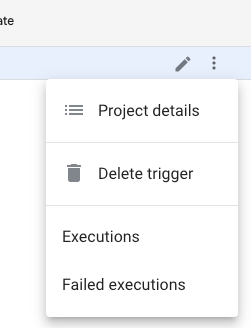
That’s it! Your code should run on your selected interval so long as the trigger exists. If at any point you would like to stop having your code run automatically, follow steps 1 and 2 to get to your Triggers List. Hover over the trigger you want to cancel, and click on the 3 dots on the right.

From there, select “Delete Trigger”
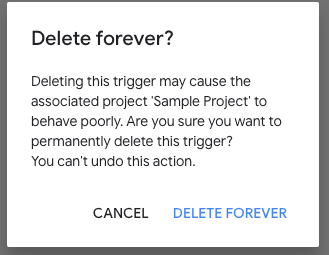
Then click “Delete Forever”. Don’t worry – it won’t delete your code and you can re-create the trigger any time by following the above steps.
 Alisa Ediger