Job Duties

06/2023-Present Sunday Stars Lead Instructor
Pioneer Library Systems

  • Prepare, reading and math curriculum as well as STEAM activities 1st-3rd grade students.
  • Engage students to work on grade level curriculum standards.
  • Supervise and high school assistants in working with the students.

08/2021-08/2023 Graduate Teaching Assistant
University of Oklahoma

  • Instructor of Record for Functions and Modeling (MATH1643) and Business Calculus (MATH1743).
  • Teaching assistant for Differential Equations (3113), and Calculus 1 (MATH1823) involving grading and leading discussion sessions.
  • Tutor for all undergraduate math classes in the university Math Center.

11/2019-06/2023 Freelance Data Analyst & Google Sheets Specialist
Fiverr

  • Effectively communicate with clients, asking directed questions to understand their objectives and desires.
  • Design, build, and analyze data systems and visualizations, such as dashboards, to address client needs and KPIs.
  • Automate client workflows using macros and Google Appscript to improve efficiency and ensure accuracy.

10/2018-07/2021 Operations Data and Procurement Specialist
Camden City School District

  • Built and maintained dashboards, reports and data entry tools structures to coordinate, collect, clean, and standardize data for generating insights.
  • Track. update, and report on department budget, purchase orders, open projects, and invoices in line with New Jersey procurement law.
  • Communicated across vendors, departments, and leadership to ensure operations ran smoothly and district needs would be met in a timely manner
  • Lead district sustainability initiative by coordinating with environmental conscious programs and vendors, hosting district wide sustainability meetings, and reporting on EPA KPIs

07/2017-06/2018 Operations Intern Data Manager
KIPP DuBois Collegiate Academy

  • Develop, update, and maintain data sets and reports.
  • Organize and operate front office, acting as liaison for guest entering the school.
  • Ad hoc tasks to ensure school operations ran smoothly.

How to Set-up App Script Triggers (Time-Based)

Spreadsheets can do amazing things with Google Apps Script. Sometimes we have codes we would like to have run automatically on certain time intervals. To do this, we need to set up a trigger. Note that anyone who has edit access to the spreadsheet can set up a trigger, but whomever sets it up will be the one who gets notified if there are ever any issues. It is best practice to have the spreadsheet owner or primary user set up the trigger. Here’s how to do it:

  1. Open your spreadsheet and from the menu bar select Extensions > Apps Script.
  1. In the window that opens, go to the menu bar and select Edit > Current Project Triggers
  1. On the new tab that opens, click “Add Trigger” in the bottom right hand corner
  1. Use the drop down menus as follows:
    • Choose which function to run: select your function
    • Choose which deployment should run: Head
    • Select event source: Time-driven
    • Select type of time based trigger: [Whatever you would like]
    • Interval: [Whatever you would like]
  1. Scroll down and click “Save”

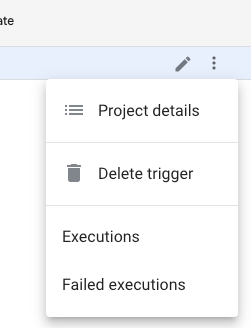
That’s it! Your code should run on your selected interval so long as the trigger exists. If at any point you would like to stop having your code run automatically, follow steps 1 and 2 to get to your Triggers List. Hover over the trigger you want to cancel, and click on the 3 dots on the right.

From there, select “Delete Trigger”

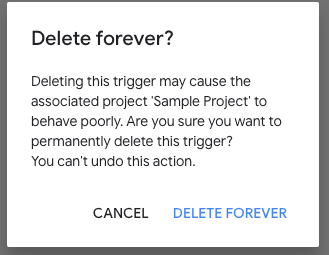
Then click “Delete Forever”. Don’t worry – it won’t delete your code and you can re-create the trigger any time by following the above steps.

How to Authorize Access to Appscript

Google Appscript makes the impossible happen in your spreadsheet through coding. Before you can run a custom script, you need to authorize access. The first time an individual uses a script (usually in the form of a custom button or custom menu) it will ask for authorization. You should only have to do this once unless you log in from a new account, lose or regain access to the file or if the script gets edited. Follow these steps to authorize it:

  1. You will get a pop-up that says “Authorization Required” Click Continue
  1. Select the account you are using to access the document
  1. You’ll get a warning message that says “Google hasn’t verified this app” Click Advanced
  1. It says continue only if you trust the developer. Select “Go To [name of code file] – unsafe”
  1. From there it will tell you what allowing this app will do. Click Allow (you may have to scroll down to find the button)
  2. Now try the button or menu item again. This time it should run smoothly.